
Got a large image that's too big to upload, slowing down your website, or eating up storage? Whether you need to compress an image to 20KB, 50KB, 100KB, or 200KB — this guide shows you exactly how to do it for free, in seconds, with no software required.
Large Image Size Compression Tool
**No sign-up. No watermarks. No software. 100% Free.**
> Compress JPG, PNG & WebP images to any size — 20KB, 50KB, 100KB, 200KB — in seconds.
Do you have large image having size more than 5 mb that’s too big to upload, the image size greater than 5MB will slow down your website, or eating up storage?** Whether you need to compress an image to 20KB, 50KB, 100KB, or 200KB — this guide shows you exactly how to do it for free, in seconds, with no software required.
Why Image File Size Matters
Large image files cause real everyday problems in uploading:
Slow websites: Google penalizes slow pages in search rankings. Images are responsible for over 50% of a typical webpage’s total size.
Failed uploads: Government forms, job applications, social media, and email all have strict file size limits.
Wasted storage: Hundreds of uncompressed photos fill up your phone or cloud storage fast.
Rejected submissions: Visa applications, college admissions, and online portals often require images under 50KB or 100KB.
The solution is simple: use a reliable, free image compressor online.
How to Compress an Image to Any Size — Step by Step
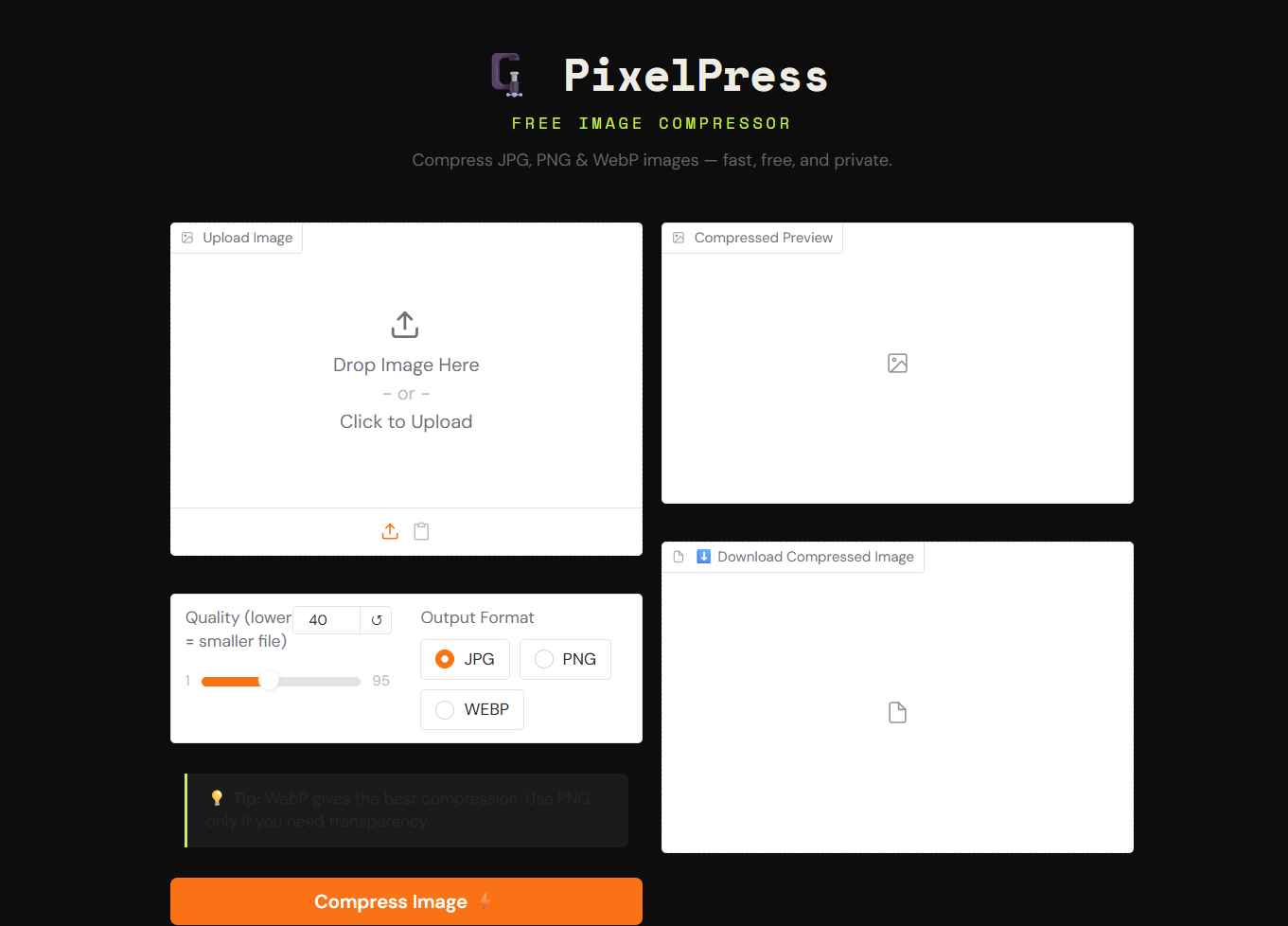
Step 1: Open [PixelPress Free Image Compressor](https://huggingface.co/spaces/jamalbaig/reduceimagesizeforfree) — no account needed.
Step 2: Upload your image (JPG, PNG, or WebP).
Step 3: Choose your output format:
– **JPG** — best for photos and smallest file sizes
– **WebP** — best compression for web use
PNG best when you need transparency
Step 4: Adjust the quality slider based on your target size (see the guide below).
Step 5:Click **Compress Image**, check the result size, and download.
How to Compress Image to 20KB
Getting an image down to 20KB requires aggressive compression. This size is common for:
– Government ID photo uploads
– Passport and visa application portals
– Old online forms with strict limits
**Settings to use:**
– Format: **JPG**
– Quality: **10–20**
– If still too large, reduce image dimensions before compressing (e.g. resize to 400×400px first)
> **Tip:** A 2MB photo of a face at 400×400px compressed to quality 15 will typically land around 15–25KB — perfect for government portals.
How to Compress Image to 50KB
50KB is a common limit for academic forms, job applications, and college admissions portals.
**Settings to use:**
– Format: **JPG**
– Quality: **20–35**
– For a standard photo (800×600px), quality 25 usually produces a 40–60KB file
> **Tip:** If your image has a lot of background detail, switch to WebP — it hits the same visual quality at a smaller file size than JPG.
How to Compress Image to 100KB
100KB is the most common upload limit across government websites, HR portals, and document submission systems.
**Settings to use:**
– Format: **JPG** or **WebP**
– Quality: **35–50**
– Most standard photos at 800×600px will fall comfortably under 100KB at quality 40
—
## How to Compress Image to 200KB
200KB gives you more breathing room and is the limit for many social media uploads, product listings, and email attachments.
**Settings to use:**
– Format: **JPG** or **WebP**
– Quality: **50–65**
– At this setting, image quality is excellent — most people cannot tell the difference from the original
Quick Reference: Quality Settings vs Target Size
| Target Size | Recommended Format | Quality Setting | Best For |
| Under 20KB | JPG | 10–15 | Government ID uploads |
| Under 50KB | JPG | 20–30 | Academic & job applications |
| Under 100KB | JPG / WebP | 35–50 | HR portals, document submissions |
| Under 200KB | JPG / WebP | 50–65 | Social media, email, e-commerce |
| Under 500KB | WebP | 65–80 | Websites, blogs, high-quality display |
Best Free Online Image Compressor -What to Look For
Not all image compressors are equal. Here’s what makes a **best free image compressor** worth using:
**✅ No sign-up required** -You shouldn’t need an account just to compress a photo.
**✅ Multiple format support** -JPG, PNG, and WebP all have different use cases. A good tool supports all three.
**✅ Adjustable quality** -Fixed-quality tools don’t let you hit a specific target size. A quality slider gives you full control.
**✅ Real size comparison** -You should be able to see exactly how much size you saved before downloading.
**✅ Privacy protection** -Your images should never be uploaded to or stored on a third-party server.
Bulk Image Compressor -How to Compress Multiple Images
Need to compress many images at once? Here’s the most practical approach using PixelPress:
- Note the quality setting that worked for your first image (e.g. quality 40, JPG)
- Process each image one by one using the same settings for consistency
- All compressed files download immediately — no waiting
> **Looking for batch compression?** For bulk image compression of 20+ images, tools like **Squoosh CLI** (command-line) or **ImageOptim** (Mac app) are good free options alongside PixelPress for individual files.
Best Image Formats for Compression
| Format | Best For | Compression Type | Transparency |
| **JPEG / JPG** | Photos, social media | Lossy (excellent) | ❌ No |
| **WebP** | Web images, all uses | Lossy + Lossless | ✅ Yes |
| **PNG** | Logos, screenshots | Lossless (good) | ✅ Yes |
**WebP is the modern winner.** It delivers 25–35% smaller files than JPEG at identical visual quality. If you’re compressing images for a website, always choose WebP.
Frequently Asked Questions
Is this image compressor free to use?
Yes, [PixelPress](https://huggingface.co/spaces/jamalbaig/reduceimagesizeforfree) is 100% free. No subscription, no watermarks, no hidden fees.
Does compressing reduce image quality?
With lossy compression (JPG/WebP), there is minor quality reduction — but at quality settings above 40, it’s virtually invisible to the human eye. At quality 10–20 (needed for very small targets like 20KB), some quality loss is visible but the image remains clear and usable.
Are my images stored on a server?
No. PixelPress processes images in-memory only. Your files are never saved or stored anywhere.
How do I compress an image to exactly 20KB?
Set the format to JPG and start at quality 15. Check the output size shown after compression. If it’s still above 20KB, lower the quality to 10. If your image is very large (e.g. 3000×2000px), resize it to a smaller resolution first — dimensions have a huge impact on final file size.
What’s the difference between JPG and JPEG?
Nothing — they are exactly the same format. JPG is just the shorter file extension (.jpg vs .jpeg). Both use identical compression.
Can I compress a PNG to JPG?
Yes. Upload your PNG to [PixelPress](https://huggingface.co/spaces/jamalbaig/reduceimagesizeforfree), select JPG as the output format, and compress. This format conversion alone often reduces file size by 60–80%.
What is the best free image compressor online?
For single images with a specific size target, [PixelPress](https://huggingface.co/spaces/jamalbaig/reduceimagesizeforfree) is one of the best free options — no account needed, supports JPG/PNG/WebP, and gives you direct control over output quality. For bulk image compression, pair it with Squoosh CLI or ImageOptim.